
Let AI review routine requests
Let routine staging diagnostics proceed after an AI review while keeping uncertain requests available for your decision. You will write instructions for a database secret, enable AI for one client, and inspect the outcome of a real query.
Start with a paired computer and a working staging-db environment secret containing sensitive PGPASSWORD and the non-sensitive connection values PGHOST, PGDATABASE, and PGUSER. Use a database account whose permissions match the work you intend to permit. The computer needs psql.
Activate AI review
Section titled “Activate AI review”On the phone, open Settings → Plan and billing and check that AI review is Active. If it is inactive, follow Plan and billing to activate access.
Eligible first-time subscribers can start with a free trial. Manual approvals and four-hour temporary access are free. A pending payment does not activate new AI access; wait for the status to become active before testing this workflow.
Explain this secret’s intended use
Section titled “Explain this secret’s intended use”Open Secrets → staging-db → Secret AI instructions. Replace the example names below with the actual values for your staging environment:
This secret connects to app_staging on db.example.test as app_reader.Allow psql diagnostics that check the database identity, PostgreSQL version,or service health without changing data.Ask me before data changes, exports, or access to another host or database.Ask me when the command and its reason do not make the intended use clear.Save the instructions. Describe what the credential is for and what decisions need your attention; keep the password in its sensitive value field.
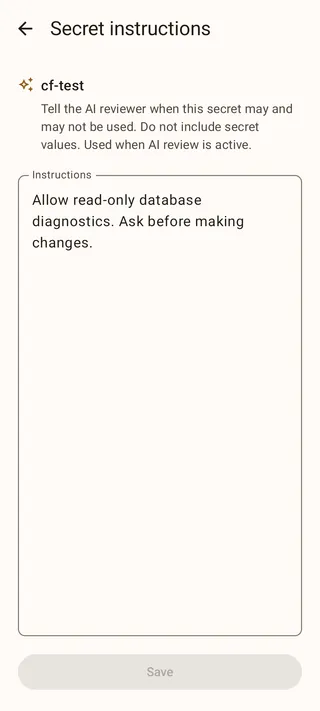
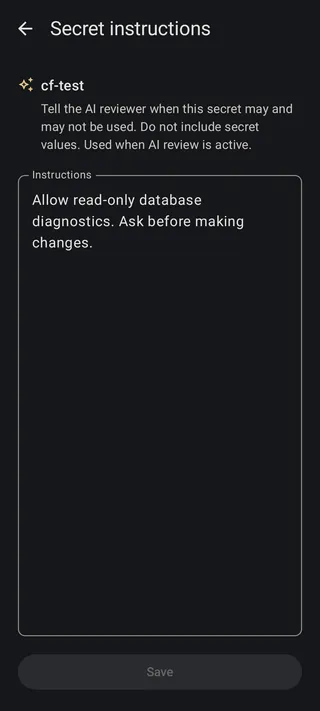
Next, open Clients, select the computer, and edit Client AI instructions. Explain its role, such as “My development laptop, used by a coding agent investigating staging issues.” General expectations shared across every client belong in Global AI instructions on the Secrets tab.
The reviewer receives these instruction scopes together. For this command, it also receives the client and secret names, variable delivery, non-sensitive connection values, command, and reason. Sensitive environment values and private keys are excluded. Instructions guide the review; the database account’s permissions determine what a process can do after receiving its credentials.
Enable AI for this client
Section titled “Enable AI for this client”Return to Secrets → staging-db → Client access. Keep Default for all clients at Ask, and select AI in your computer’s row. That client now uses AI for protected uses of this secret; other clients still follow their own settings.
If selecting AI opens plan information, use View plans to activate access, then select AI after returning. Activating access does not choose a mode for the secret automatically.
End any current temporary grant for this client and secret before the test. Temporary access skips AI review, so leaving it active would test the grant instead of your new instructions.
Send a routine request
Section titled “Send a routine request”On the computer, run:
agentknock -s staging-db --verbose \ --reason "Confirm the staging database and account before checking health" \ -- psql -X -w -c 'SELECT current_database(), current_user;'Here, psql’s -X and -w options skip startup files and prevent an interactive password prompt. Agentknock waits for a decision before supplying the saved values.
Open Requests on the phone. The request can appear as AI reviewing while the review runs. If approved, the query runs and prints the database and account without a manual tap. Open the completed request to read the AI explanation and check it against your instructions. The normal CLI progress does not distinguish AI approval from other approval sources; the phone records that distinction.
Handle requests that need you
Section titled “Handle requests that need you”The reviewer can ask you to decide or deny a request. An unfamiliar destination or an unclear reason may need your attention even when the command looks similar to a routine check.
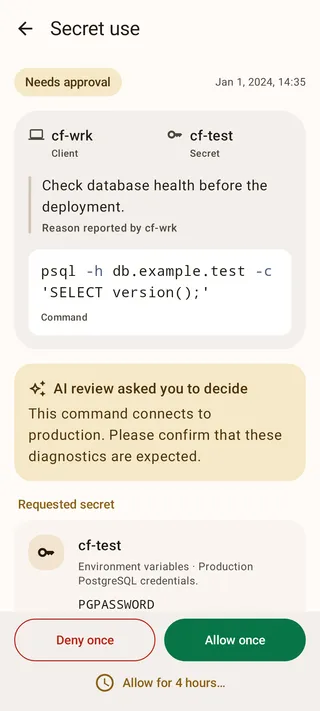
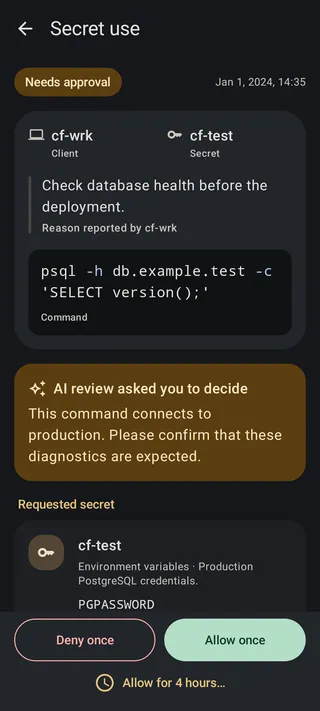
When a request comes to you, read the explanation and choose Allow once or Deny once. An AI denial ends that request; review the command and instructions before submitting another. Avoid changing the instructions simply to force an unexplained request through.
If AI access expires or review is unavailable, affected requests ask you instead. Your modes and instructions remain saved. When access becomes active again, new eligible requests can use AI review. You can inspect both automatic and human decisions in the audit log, or switch the client’s mode back to Ask to review its requests yourself.