
Replace a password or key
A password has changed, a token is expiring, or an SSH key needs replacing. You want the next command to use the replacement without rebuilding the secret’s approval settings or pairing every computer again.
The work has two parts: update what Agentknock stores, and update what the service accepts. Follow the password flow for an environment variable, or the SSH flow for a key stored on the phone.
Get the replacement credential
Section titled “Get the replacement credential”For an API token, create the replacement through the service that issues it. If the service allows both tokens to remain valid during the change, keep the old one until you have tested the replacement. For an account password, changing it at the service may invalidate the old password immediately, so update Agentknock as part of the same change.
This example continues the staging database workflow. The existing staging-db secret contains PGHOST, PGUSER, PGDATABASE, and a sensitive PGPASSWORD. You have the new database password and a paired computer with psql installed.
Send only the changed value
Section titled “Send only the changed value”On the computer, upload an update using a hidden prompt:
agentknock secret upload staging-db --update --from-prompt PGPASSWORDEnter the replacement at Value for PGPASSWORD:. The terminal does not display what you type. Using the prompt keeps the password out of the command line and its shell-history entry.
--update replaces the supplied variable while keeping the host, user, database name, and other omitted variables. Keep --replace for a deliberate replacement of the entire secret’s contents; with only PGPASSWORD supplied, it would remove those other variables.
The CLI reports that the phone received the upload. At this point, the stored password has not changed. The proposal still needs your decision on the phone.
Accept the update on your phone
Section titled “Accept the update on your phone”Open Secrets → Incoming uploads and select the proposal for staging-db.
Check that it targets the expected secret and uses Update. Review the proposed change to PGPASSWORD; the other variables should be listed as unchanged by the proposal. Keep the password marked Sensitive, then select Approve.
The update preserves the secret’s name, approval modes, client overrides, and AI instructions. It ends its temporary access grants, so the next request follows the saved approval settings again.
If you changed the stored secret after this proposal arrived, the phone can reject the outdated proposal. Send a fresh update and review that one. Do not treat a successful upload command as proof that the new password has been installed.
When entering a replacement directly on the phone is easier, open the stored variable’s Edit action, change Value, and select Save. That reaches the same stored-value outcome without an upload.
Test a new command
Section titled “Test a new command”Start a fresh database check from the computer:
agentknock -s staging-db \ --reason "Test the replacement staging password" \ -- psql -X -w -A -t -c 'SELECT current_database();'Review and allow the request if the phone asks. A successful check produces the database name, for example:
app_stagingAn authentication error means the service did not accept the attempted connection. Check that the uploaded value was approved and that the host, account, and database are correct. Printing the password is unnecessary.
Commands already running keep any environment values they previously received. Restart a long-running process that must use the replacement. Once the new command succeeds, revoke the old token at its issuing service if it remains valid, and update or remove any old copies you still maintain outside Agentknock.
Replace an SSH key
Section titled “Replace an SSH key”An SSH key change also requires registering a new public key with each server or service. Keep an existing administrative session or another working login method available until the new key has been registered and tested: replacing the key on the phone removes its ability to sign with the old private key.
On the phone, open the SSH secret, expand Details, and select Replace key. Choose Generate new key, then Generate and review. Review the new public identity and select Replace key to save it.
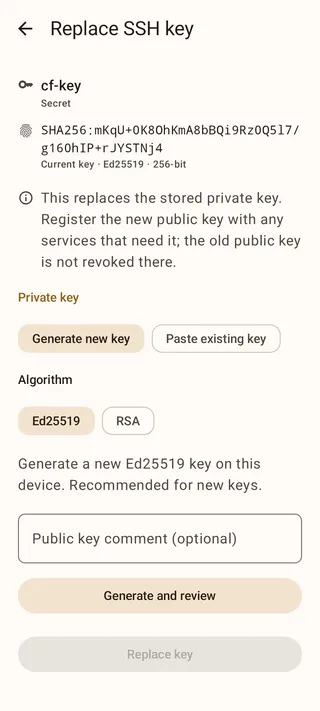
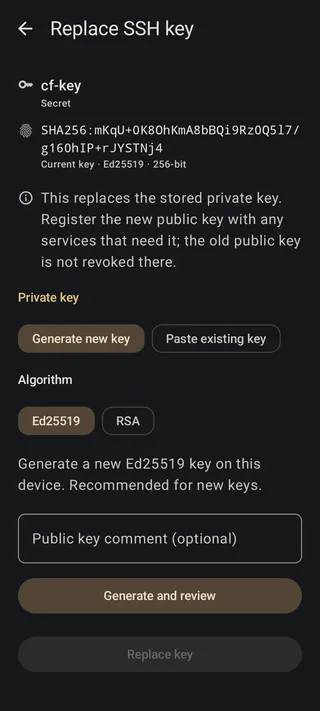
Back in the secret’s details, use Copy public key. Register that public key for the intended account using your server or service’s access controls. Agentknock preserves the secret’s name and approval settings, but ends its temporary grants.
Start a new command with that secret. For the staging-ssh secret from the SSH connection guide, run:
agentknock -s staging-ssh --no-ssh-passthrough \ --reason "Test the replacement SSH key" \ -- ssh -v -o IdentityAgent=SSH_AUTH_SOCK deploy@staging.example.com hostnameReview the new SSH authentication request on the phone and allow it if asked. SSH’s -v output lets you check which public key it used to authenticate. Confirm it is the replacement; a successful login using a different local key does not test this change.
After you confirm the new login works, remove the old public key from the places where it should no longer be accepted. The phone does not remove it from servers automatically. If the key is used for Git signing, register the replacement as a signing key and test a new signed commit too.
The audit log records the stored-value or key change and subsequent requests. For exact update behavior, see secret uploads and SSH key replacement.