
Investigate a secret's use
A database check ran earlier, and you want to know which computer requested the credentials, why access was allowed, and whether the values reached it. Follow one identifiable command through request history and the audit log on your phone.
For this walkthrough, use a paired computer, psql, and the staging-db secret from your first command. You can follow an existing request instead if you already have one to investigate. The screenshots illustrate the same controls with example names and activity.
Make an identifiable request
Section titled “Make an identifiable request”On the computer, run a database check with a reason you can recognize later:
agentknock -s staging-db --reason "Investigate staging connectivity" -- psql -c 'SELECT version();'If the phone asks you to decide, open the request in Requests, check the command, and select Allow once. If approval settings, AI review, or temporary access already allow it, the phone proceeds automatically and still records the operation.
Keep the terminal’s result in mind. A successful PostgreSQL response tells you the database check worked; a connection error means it did not. The phone records the exchange of credentials separately from that command outcome.
Find the request on the phone
Section titled “Find the request on the phone”Open Requests and find the entry by client, command, and time. Open its details to check the reason and the secret it requested. The recorded decision can explain why it proceeded without an approval prompt.
Delivered means the client confirmed receiving the requested data. It does not mean the SQL query succeeded. An ended or failed exchange may have an error instead of a confirmed delivery; read its explanation before drawing a conclusion.
Requests keeps the 100 most recent completed secret-use, SSH authentication, and Git-signing requests combined. If your operation has left that list, continue in the audit log, which retains events for 365 days.
Locate the approval
Section titled “Locate the approval”Open Settings → Audit log. Events appear newest first, grouped by date. Find the time of your database check and look for the client and staging-db secret.
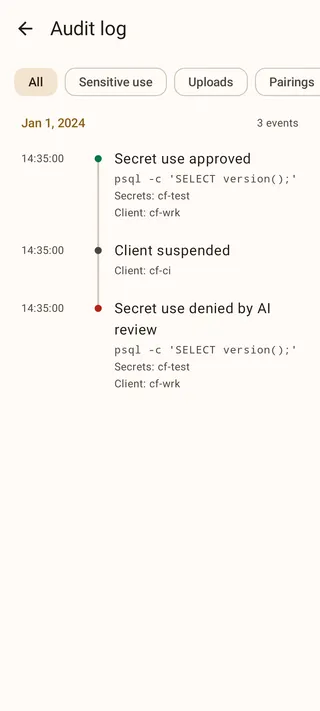
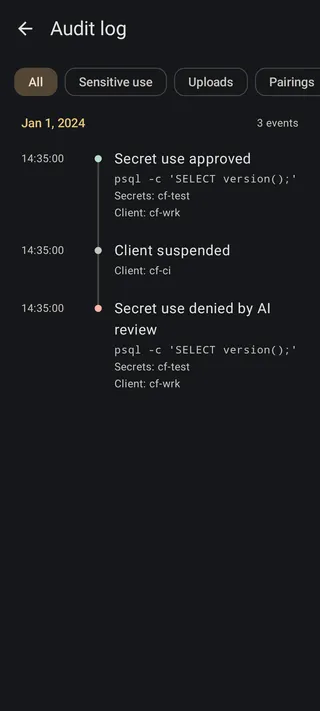
Select Sensitive use to narrow the list to approvals for protected operations. Select the matching approval event to see its Decision source. For a request you allowed once, this is User; an unattended request may instead identify approval settings, AI review, or temporary access.
If you are investigating a denial, leave the filter at All. Denials do not appear under Sensitive use because that filter selects approvals. The recorded client and secret names reflect the names at the time, even if you have renamed them since.
Follow receipt, decision, and confirmation
Section titled “Follow receipt, decision, and confirmation”Return to All to inspect the stages around the approval. For a successful manually approved database check, look for:
- Secret use requested — the phone received the command’s request.
- Secret use approved — you authorized access to the requested data.
- Client received secret data — the client confirmed receipt.
These are three events for one operation. An AI-reviewed request can also have a separate review event and explanation before the final decision.
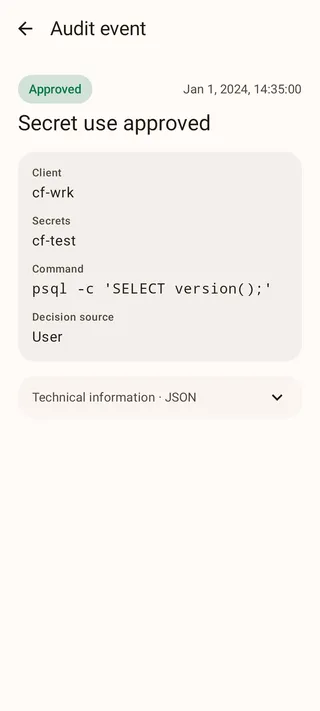
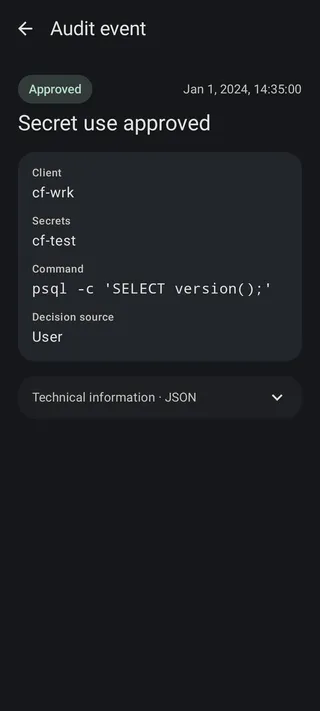
When several commands ran close together, open an event’s Technical information · JSON and note its request_id. Compare it with the nearby receipt and confirmation events. Matching IDs connect those records more reliably than a similar command or timestamp. For Git signing and SSH authentication, the recorded original invocation ID also connects the signature request to the command that caused it.
An approval without a confirmed delivery does not prove that the client received nothing. Likewise, a confirmed delivery does not establish what the command subsequently did with the values. Use the terminal or service logs to investigate that part.
Act on what you found
Section titled “Act on what you found”If access came from a temporary grant you no longer need, open the secret or client and select End for that grant. If the computer should stop making requests, suspend or revoke its access. Replacing a credential that has already been issued is a separate rotation step.
For a closer comparison or a support report, Copy event JSON copies the selected event. It includes recorded command context and may include non-sensitive values, so review it before sharing. Sensitive environment values and private SSH keys are excluded from the structured secret data.