
Sign commits and tags
Use Agentknock to sign a commit with an SSH key stored on your phone. You will review the change in Git, inspect the signing request on the phone, and confirm that Git saved the signed commit. The same key can sign tags.
Start with a paired computer, Git with SSH-signing support, and a repository with your author name and email configured. Prepare a small change you intend to commit.
Prepare a signing key
Section titled “Prepare a signing key”On the phone, open Secrets → New secret, choose SSH key, and name it git-signing. Generate an Ed25519 key, review its preview, and create the secret. Leave its approval setting at Ask. You can instead use an existing SSH-key secret or upload a key already stored on your computer, choosing git-signing as the destination name.
Open the saved secret and use Copy public key. If you want your Git hosting service to verify signatures, register the complete public-key line with that service as a signing key. Registration for SSH login alone may not enable commit verification.
The following command assumes Git has no user.signingKey configured, allowing Agentknock to supply its selected public key. Check your current setting with:
git config --get user.signingKeyNo output means no key is configured. If a value appears, see Choose a different signing key before continuing.
Sign the change
Section titled “Sign the change”Stage the intended files with git add, then review what will be committed:
git diff --cachedRun the commit through Agentknock:
agentknock -s git-signing --verbose --no-ssh-passthrough \ --reason "Commit the database health-check improvement" \ -- git -c gpg.format=ssh commit -S -m "Improve database health checks"-S asks Git to sign this commit, and -c gpg.format=ssh selects SSH signatures for this invocation. Agentknock does not change your saved Git configuration. --no-ssh-passthrough prevents signing through another key in your existing SSH agent.
The initial secret-use request provides the public key automatically. Git then sends a separate signing request. With --verbose, the terminal reports:
AGENTKNOCK: Waiting for the device to approve the Git signature.Review and allow the signature
Section titled “Review and allow the signature”On the phone, open Git commit signature in Requests. Check the client, signing key, commit message, and author and committer identities. These identities and the message come from the content being signed.
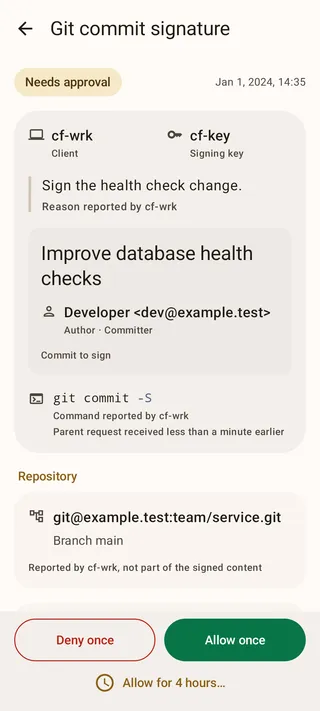
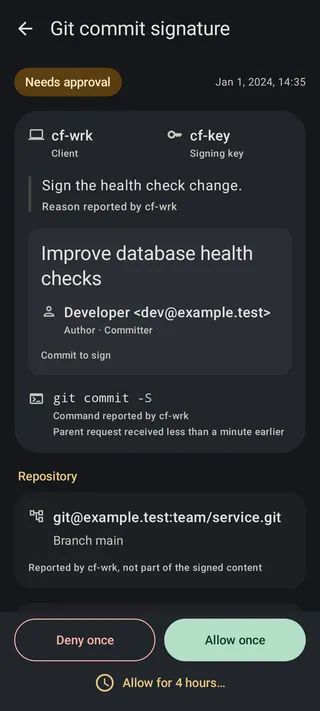
Check the repository and branch against the work you just staged. A changed-file list can help identify the change, but it does not show a diff. Expand Exact content to sign to inspect the full object. Tap Allow once when it matches your intended commit.
The terminal reports confirmation of the signature exchange:
AGENTKNOCK: Git signing response received. Confirming receipt.AGENTKNOCK: Git signing request complete.Git then prints its normal commit summary. Confirm the new commit with:
git log -1 --format='%h %s'The phone’s Content signed status confirms delivery of the signature. Git’s summary and the new log entry confirm that the commit was created. If Git fails after signing, inspect its error before trying again; a delivered signature alone does not prove the commit was saved.
Sign a tag and verify signatures
Section titled “Sign a tag and verify signatures”For a release you are ready to tag, use a new tag name:
agentknock -s git-signing --reason "Sign release v1.2.0" \ -- git -c gpg.format=ssh tag -s v1.2.0 -m "Release v1.2.0"Review the Git tag signature request and allow it. Signing does not push the commit or tag. A later push over SSH can create a separate SSH authentication request.
Local signature verification needs Git to trust the signer’s public key through gpg.ssh.allowedSignersFile; see Git’s verification settings. A hosting service uses its own registered signing keys and account rules.
Choose a different signing key
Section titled “Choose a different signing key”If user.signingKey already selects another key, save this secret’s complete public-key line in a public-key file, such as ~/.ssh/agentknock-signing.pub. Ensure the ~/.ssh directory exists. You can copy the public key from the phone, or extract it on the paired computer with jq installed:
agentknock secret list | jq -er '.secrets["git-signing"].public_key' > ~/.ssh/agentknock-signing.pubThis retrieves only public information. Set that file for this repository:
git config user.signingKey ~/.ssh/agentknock-signing.pubUse the public-key file. The earlier commit command includes --no-ssh-passthrough, which rejects a local private-key path instead of using the ordinary signing fallback. Key comments do not affect matching. The CLI signing reference covers existing Git settings and fallback behavior.