
Pair a computer
Connect your development laptop to Agentknock so commands on that computer can request secrets from your phone. You will start the pairing in a terminal, verify it on the phone, then finish it in the terminal.
Before starting, install the CLI and Android app, and complete the phone’s initial setup. Keep both devices online. The addresses, codes, and names in this walkthrough are examples; yours will differ.
Find your phone’s address
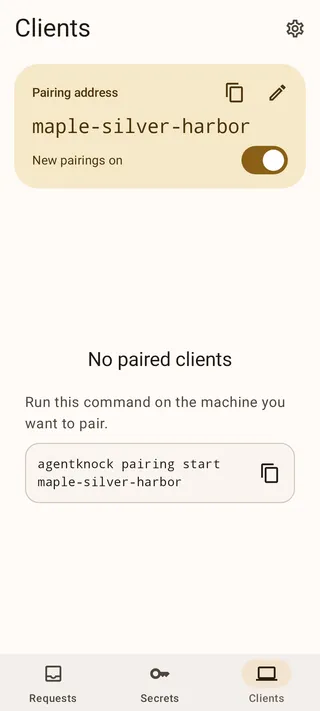
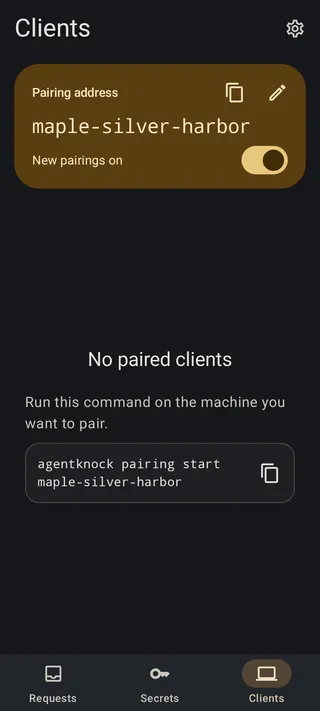
Section titled “Find your phone’s address”On the phone, open Clients. Your pairing address appears at the top. Make sure New pairings on is enabled; use the switch to resume pairings if they are paused.
When no clients are paired, the page offers a command you can copy. The address is public: it lets a computer ask to pair, while your code comparison determines which request you accept.
Pair a client
Section titled “Pair a client”On the computer you want to connect, run:
agentknock pairing start maple-silver-harborUse your phone’s address in place of maple-silver-harbor. The CLI contacts the phone and prints a verification code containing 12 digits in three groups of four. It exits after displaying the code; the pairing is still pending.
On the phone, open the new pairing request in Clients. You will see three possible codes. Compare all 12 digits with the terminal and select the matching code. For example, a terminal code of 1234 5678 9012 corresponds to that exact choice on the phone.
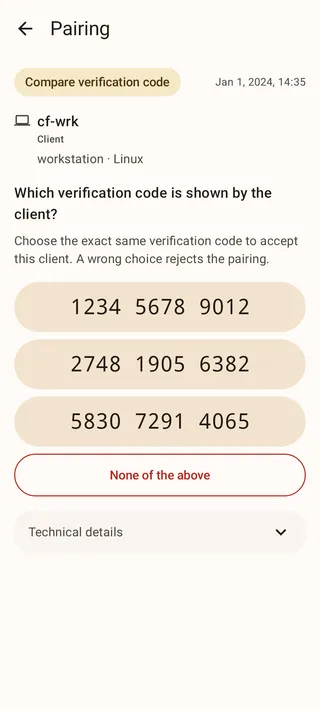
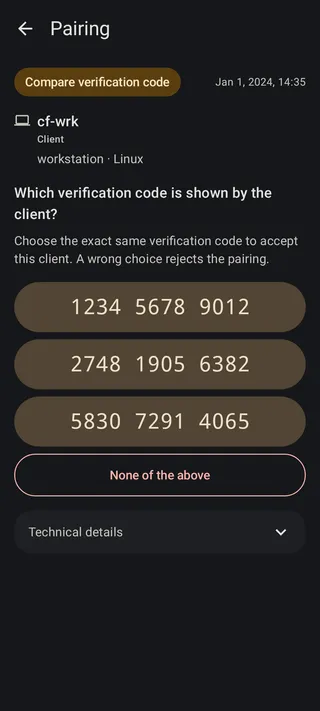
Selecting the matching code accepts immediately, subject to your configured Android authentication. The computer name helps you recognize the request, but the code is what verifies that the phone and intended computer established the same pairing.
If no code matches, choose None of the above. A wrong choice rejects the attempt rather than offering another guess. Don’t accept an unfamiliar request just because it arrived when you were trying to pair.
Finish on the computer
Section titled “Finish on the computer”After acceptance, the phone shows Waiting for client. Return to the same terminal and run:
agentknock pairing finishWhen it succeeds, the phone moves the computer into its paired-client list. Check the computer’s local state with:
agentknock pairing statusThe successful result is:
Pairing status: active.If finishing reports a connection error, check this status before retrying. An active pairing needs no further finish command; a pairing still waiting for confirmation can retry it. The finish reference explains errors during the final exchange.
Give the computer a recognizable name
Section titled “Give the computer a recognizable name”On the phone, open the paired client’s details, use the rename action, and save Development laptop. This changes its name in Agentknock, so later requests are easier to identify. It does not rename the computer itself.
You can now switch new pairings off in Clients. Your development laptop remains connected; the switch controls future pairing attempts. Resume it when adding another computer. Each computer pairs separately, while the phone can hold multiple client pairings.
Restart an abandoned attempt
Section titled “Restart an abandoned attempt”The phone admits one unfinished pairing at a time. If an attempt stalled, failed, or was rejected on one side, clear it before starting another:
-
Reject the unfinished request on the phone. During code comparison, use None of the above.
-
On the computer, discard its pending pairing:
Terminal window agentknock pairing abort -
Start again using the phone’s current address.
Aborting locally does not dismiss the phone’s request. If a fresh attempt still produces a genuine code mismatch, reject it and report the problem.
With pairing complete, try a harmless test request or run a command with your own credentials. When you add more computers, set access for each one.