
Import credentials from a computer
Your project already has staging database credentials in .env.staging. You want the phone to hold them and approve future use, while keeping the existing database account. Upload the file once, review what arrived, and test a connection through Agentknock before removing the local copy.
This walkthrough assumes the computer is paired and has psql installed. The file should contain PGHOST, PGUSER, PGDATABASE, and PGPASSWORD for an existing PostgreSQL database that uses password authentication. The example destination is a new secret named staging-db. If you already created that secret, follow Update or rotate credentials to change it.
Choose the file to import
Section titled “Choose the file to import”Use the environment file your project already relies on. You do not need to display its contents in the terminal, source it into your shell, or paste the password into a command. The CLI reads the file directly.
Check that the file contains the four intended variables and no unrelated credentials. Each imported name becomes a variable in the new secret, so a large project environment file may contain more than this database needs. Use a file containing the intended entries if they are currently mixed together.
The file uses dotenv syntax, not shell script syntax. In particular, single-quote literal values that contain $ when you need to prevent dotenv variable expansion. The upload reference explains quoting, duplicate names, and supported inputs.
Send the proposal
Section titled “Send the proposal”From the directory containing .env.staging, run:
agentknock secret upload staging-db \ --from-env-file .env.staging \ --description "Staging database credentials"After the phone confirms receipt, the terminal prints:
Secret upload "staging-db" delivered to the device.The secret isn't available until you approve the upload on the device.Suggested action: Review the secret upload on the device.The CLI has finished sending the proposal. Your phone has not saved a usable secret yet, and the command does not wait for your approval. Keep the original file until you have accepted and tested the upload.
Review and save it on the phone
Section titled “Review and save it on the phone”Open Secrets and select the incoming upload. Check the requesting client, proposed name, description, and variable names. For this example, expect the four PostgreSQL variables you chose. For a new secret, you can change the proposed name before accepting it; use the final name in subsequent commands.
New uploaded variables start as sensitive. Leave PGPASSWORD sensitive. You can turn sensitivity off for PGHOST, PGUSER, and PGDATABASE if you want those values available as connection context. Non-sensitive values are disclosed to clients without approval and may be included in AI review. Changing a value to non-sensitive may require device authentication.
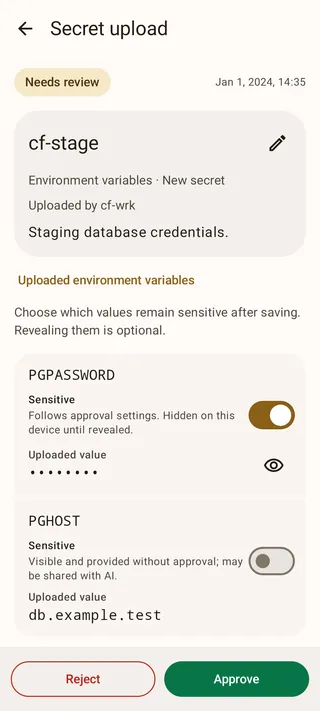
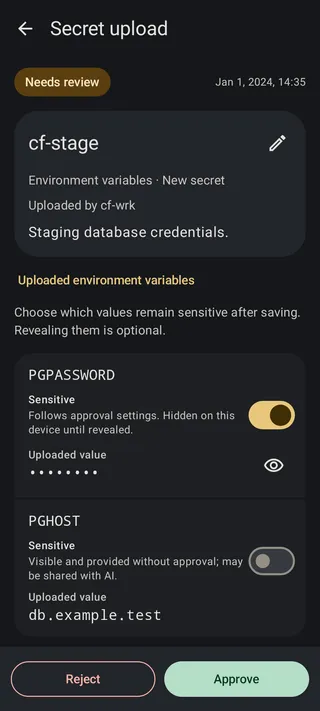
Choose Approve to save the secret. If the proposal contains the wrong account or unexpected variables, choose Reject, correct the source file, and upload again. Rejection discards the proposal; it does not edit the source file on your computer.
Test the imported credentials
Section titled “Test the imported credentials”Back on the computer, check that the accepted name appears:
agentknock secret listThen request a database-name query:
agentknock -s staging-db \ --reason "Check the staging database connection" \ -- psql -X -w -A -t -c 'SELECT current_database();'On the phone, review the request and choose Allow once. The terminal waits for that decision before starting psql. With the example database, the result is:
app_stagingUse your actual database name to judge the result. A connection error after approval means the query did not verify the credentials; correct the database settings or update the imported values before proceeding. The command walkthrough explains the request and result in more detail.
Finish the move
Section titled “Finish the move”Update scripts that source .env.staging so they run their database command through Agentknock. Once those commands work with phone approval, remove the local credential copies you no longer need and clear any copies exported in existing shells. Uploading does not modify files, shell profiles, environment variables, backups, or version-control history on the computer.
For later password changes, update the stored secret through the credential rotation workflow. If the credential you need to move is an SSH private key, follow SSH key import and its first connection; SSH secrets use a different delivery model from environment variables.