
Set access for each computer
Your development laptop needs staging database credentials, while a build runner should not receive them. Give the secret a default rule, override it for the runner, and check the difference from both computers.
Start with two paired clients and the staging-db environment secret from your first command. Its database password must remain sensitive, and its connection variables should identify your database. Both computers need psql installed for the check below. The example screenshots use different client and secret names.
Name the computers
Section titled “Name the computers”On the phone, open Clients and rename the pairings Development laptop and Build runner. Use the client information to help identify them if their original names are unclear.
Client details holds the computer’s name, AI instructions, and suspension controls. To decide how it may use a particular secret, open that secret instead.
Set a default and an exception
Section titled “Set a default and an exception”On the phone, open Secrets → staging-db and scroll to Client access.
- Under Default for all clients, select Ask. Protected uses will wait for your decision.
- Leave Development laptop showing Uses default.
- In the Build runner row, select Deny.
Selections save immediately. The runner now has an explicit override for this secret; other clients follow the default. Use default removes an override when you want that client to follow future default changes again.
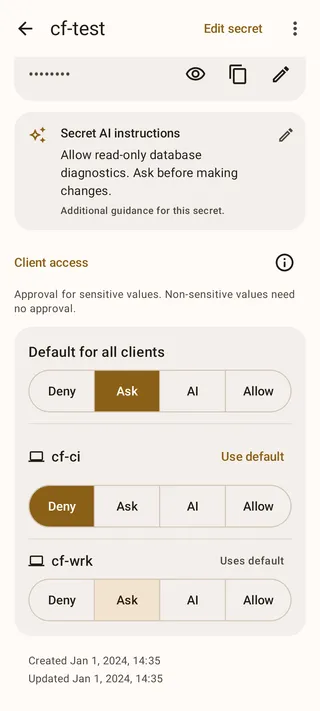
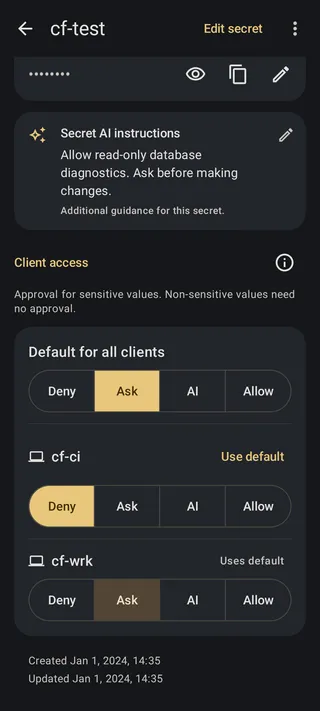
For this check, end any existing temporary access to staging-db. A valid temporary grant can otherwise let the laptop proceed without prompting even though its saved mode is Ask.
Check the rule from both computers
Section titled “Check the rule from both computers”On Development laptop, run:
agentknock -s staging-db --reason "Check the staging database version" -- psql -c 'SELECT version();'The terminal waits while the phone shows a request in Requests. Open it, check the client name, command, and requested secret, then select Allow once. The laptop receives the values and psql connects to the configured database. Its output shows the database version if the connection succeeds.
Run the same command on Build runner. The phone’s override denies the protected request automatically. The CLI reports the denial and does not start psql; the phone records the denied request without asking you to approve it.
This rule controls the sensitive password. A denied client can still list secret metadata and request values marked non-sensitive. To block the computer’s requests altogether, suspend it as described below.
Choose how routine work should proceed
Section titled “Choose how routine work should proceed”Keep Ask when you want to decide each request. For a period of related work, grant temporary access from a request rather than permanently changing the mode.
To have the phone assess requests using your instructions, select AI in the laptop’s row and follow the AI review walkthrough. This requires active AI review access. The reviewer can allow, deny, or ask you to decide.
Allow automatically permits protected uses of that secret from the selected client. Choose it only when that is the behavior you intend: AI instructions do not restrict this mode. These choices belong to each secret, so allowing a database secret does not automatically allow a separate deployment key.
Suspend a computer or end its pairing
Section titled “Suspend a computer or end its pairing”When the laptop should stop making requests, open Clients → Development laptop and select Suspend. The phone blocks new requests immediately and synchronizes the change with the relay. Changing… indicates that the relay has not confirmed it yet.
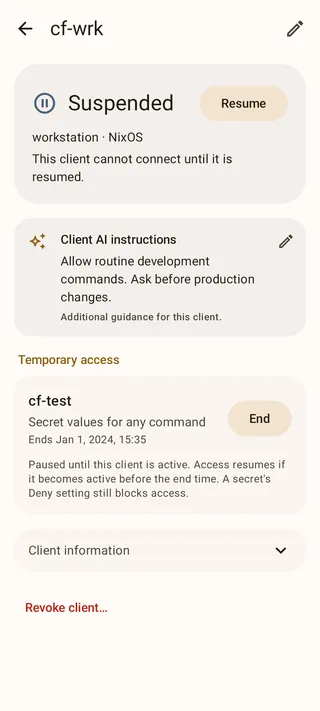
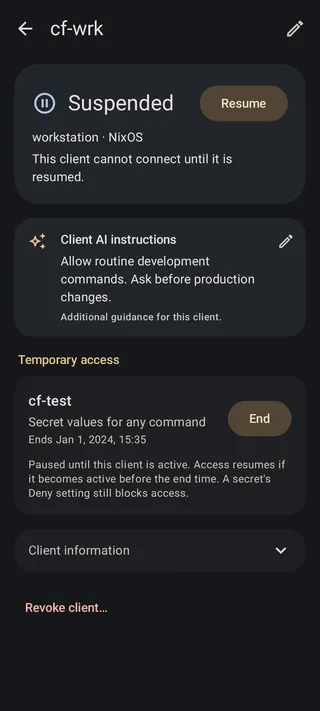
Select Resume when the laptop should reconnect. Temporary grants keep their original expiry while suspended, so any remaining time becomes usable again after resuming. End those grants separately if you want another decision first.
To retire the laptop, choose Revoke client… and confirm. It disappears from the client list and must pair again to regain access. If you still control that computer, remove its leftover local record:
agentknock pairing remove --forceChanging access cannot recall values a command already received. If the underlying database credential also needs replacing, rotate the credential. To check how a rule was used, follow the request in the audit log.